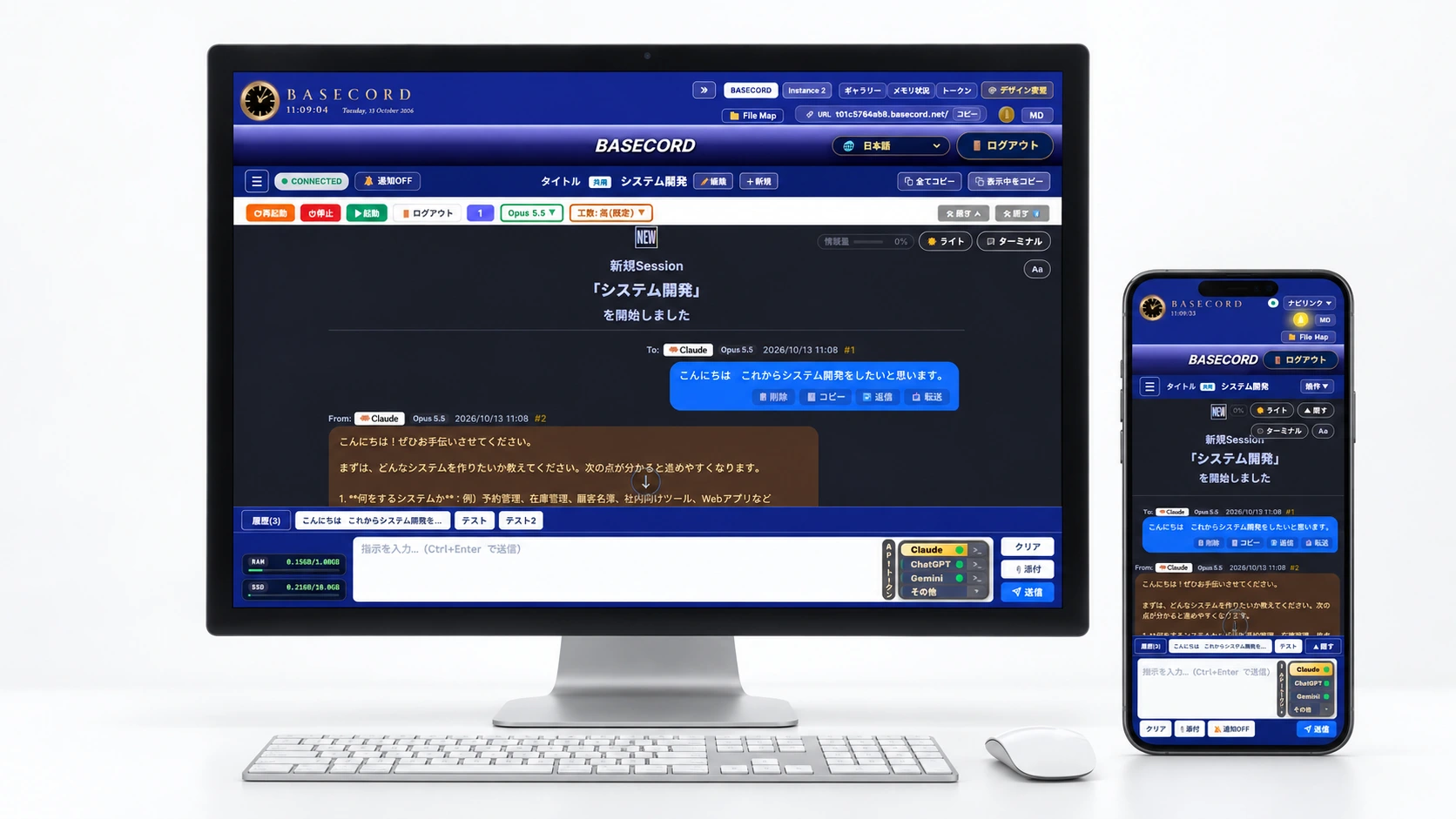
Works anywhere, on any deviceAsk on your work PC,
then check from your smartphone on the train home.
Runs on dedicated cloud servers,
so it doesn't tie you to your device.
The work is done not on your PC but on the BASECORD server in the cloud.
So even if you close your PC, the AI keeps working, and when you open your smartphone, you can receive the results right on the same screen.
Traditional development tools that live on your PC
- Requires installing dedicated software and development environments on your own PC
- AI processing stops if you close your PC or put it to sleep during a task
- You can't check progress or give quick revisions from your smartphone while you're out
- Moving to a different PC means spending time re-setting up files and settings from scratch
With BASECORD
- Completed entirely in the browser. Just log in from a PC, smartphone, or tablet
- Ask for a long task on your PC and head out. The server finishes it all in the background
- Progress is delivered to your smartphone screen in real time, and you can reply "fix this here" on the spot
- Use the same files and the same history no matter which device you open it from: home PC, work PC, or smartphone
POINT 01
Full real-time sync across PC, smartphone, and multiple devices
If you open the same room (instance) on both your PC and smartphone, instructions sent on one and AI replies are immediately reflected on the other screen. Add an icon to your smartphone's home screen (PWA) and you can open it with one tap, just like a dedicated app.
POINT 02
Instantly view or share pages and images you've created with one click
Content generated by AI, such as websites, documents, and images, can be viewed directly in your browser with one click from the link or thumbnail card in the chat screen. There's no need to download and unzip files.
POINT 03
Phone photos and PC Excel and PDF files, attached as-is
Just paste documents and job-site photos taken with your phone, or PDF, Excel, and audio files on your PC, straight into the chat. The AI reads the contents and carries the work through to totaling, transcription, and page creation.
POINT 04
Switch between multiple AIs or consult them all at once with a single button
Simply switch the recipient buttons at the bottom of the screen to consult multiple AIs, such as Claude, ChatGPT, and Gemini, in the same room. Previous conversations and files you created carry over as they are, so there's no need to re-explain anything by copy and paste.
POINT 05
Theme-based "rooms" plus ready-to-use copy boxes and report pages
Organize rooms by purpose, such as "Website Production," "Accounting & Cash Management," or "Ad Operations," and every room can reference the shared overall memory. Replies to customers are output in a dedicated box you can copy with one click, and long research reports are automatically compiled into easy-to-read web pages.
Here's how it fits into a day.
Not just the time you spend at your desk, but every moment on the move or in the gaps at job sites becomes creative time.
SCENE 01At the office in the morningFrom your PC, ask "Create a new guide page and a summary table," then head into your meeting.
SCENE 02On the trainOpen a preview of the finished page on your phone and give a quick instruction: "Make the text a little bigger."
SCENE 03Out and about or on siteSnap a photo of documents or a whiteboard on your phone, send it, and say "Organize this and make it a shared page"—done instantly.
SCENE 04At your home PCWhen you get home and open your home PC, the work you started on your phone during the day is right there on screen.