Setup approx. 120MB / Windows 10 · 11 (64-bit) / Double-click and everything installs
Features
Turn the photos on your device into a video you can share, perfect for trips, events, or introducing a shop.
📷 Mix photos and videosArrange photos in JPEG, PNG, HEIC (iPhone), WebP, RAW, and more alongside videos like MP4, MOV, and AVI, all in the same list.
✨ 37 transition effectsChoose from fade, slide, wipe, page turn, mosaic, and more. Set a different effect for each slide, or pick "Random" and let the app decide.
🎵 Play BGM for just the part you wantSet where the song starts and stops, and adjust the volume for each track. You can also balance the volume between the BGM and the audio in your videos.
🔤 Title cardsInsert a "cover" screen anywhere you like, with text on a solid color or gradient background.
🎬 Export as MP4Save your slideshow as an MP4 video that plays right away on phones and social media.
💾 Save projectsSave your slide order and settings so you can pick up where you left off. You can also save all the materials together.
How It Works
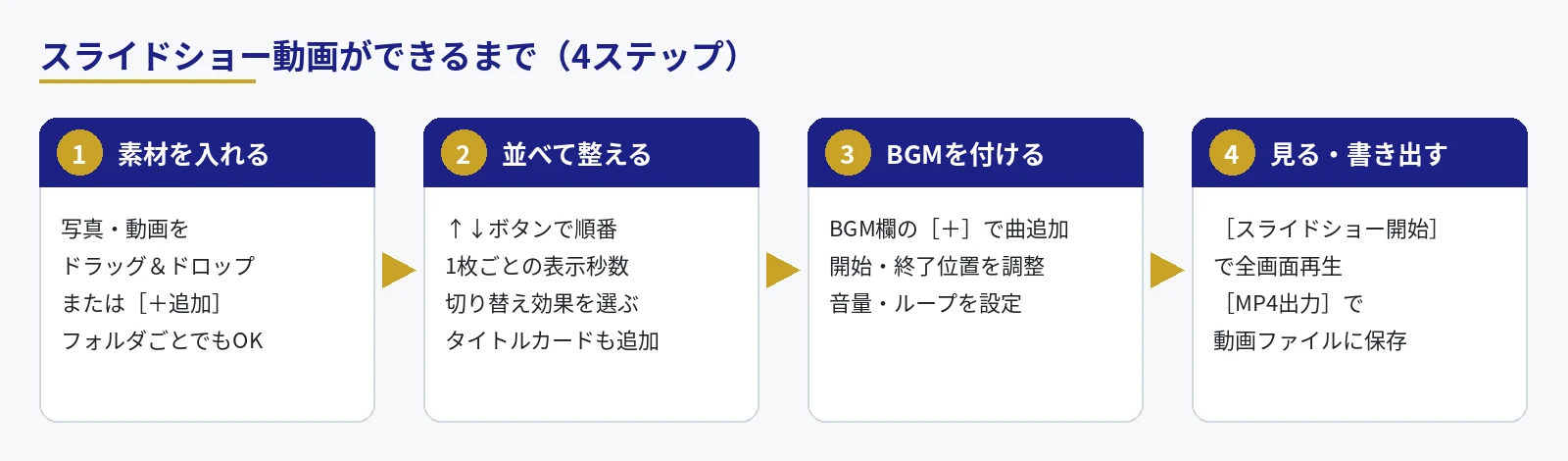
Making a video takes just 4 steps.
Figure 1: From start to finished slideshow video
First-Time Setup
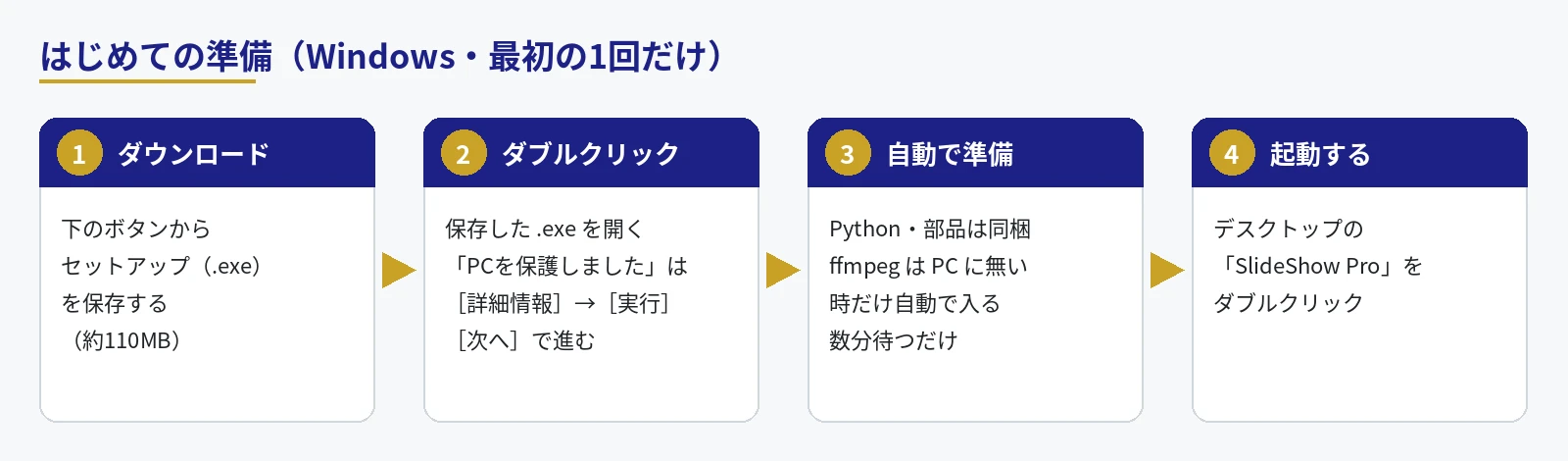
Just double-click the setup file (.exe). You don't need to install Python or any components yourself. After the first time, launch SlideShow Pro from the SlideShow Pro icon on your desktop.
Figure 2: The 4 setup steps
① Download
Save SlideShowPro_Setup_v1.3_211.exe (about 120MB) from the Download link on this page.
② Double-click
Double-click the saved .exe file to open the setup screen. Press [Next] to continue. You can keep the default install location. No administrator password is needed.
If a blue "Windows protected your PC" screen appears
You may see the following blue screen right after you double-click. Click ①[More info], and a ②[Run anyway] button will appear. Press it to continue.
① Click the text "More info"② Click the [Run anyway] button that appears
Why does this screen appear?
This does not mean a virus was found. This is the screen where Microsoft Defender SmartScreen, a built-in Windows safety check, asks you to confirm before opening a newer app with few users yet. It's just a precaution.
Windows decides whether to trust an app based on a "digital signature" that proves who published it, and on how many people have used it. SlideShow Pro was just released and doesn't have a digital signature yet, so it shows "Unknown publisher." This message is common for free software made by individuals or small companies.
If the file is truly dangerous, Windows will show a message like "Virus detected" and stop it without showing the[Run]button at all.
To use it with peace of mind
The setup is distributed from the official BASECORD website https://www.basecord.ai/ over encrypted communication (https). Please do not use any files you obtain from anywhere other than the buttons on this page.
All the setup does is place the app and the necessary components inside your user folder (ffmpeg is downloaded only if it is not already on your PC), and create a shortcut and an entry under "Settings → Apps". It does not ask for administrator rights and does not change any settings that affect the whole PC. When you no longer need it, you can remove it from "Settings → Apps".
If you're worried, right-click the saved .exe and choose "Scan with Microsoft Defender" to check it for viruses before running it (on Windows 11, it is under "Show more options").
You can verify that the file has not been tampered with by checking the checksum (SHA-256) in the "Downloads" section below.
③ Wait until it finishes
When you press [Install], a progress bar will show how things are going. It will automatically do the following:
Install the app itself and the full set of Python and components needed to run it (all included in the setup)
Check for ffmpeg (free software used for video audio and MP4 export). If it is already on your PC, it will be used; only if it is missing will it be downloaded automatically (about 110MB, internet connection required)
Create "SlideShow Pro" on the desktop and in the Start menu
It is installed to %LOCALAPPDATA%\Programs\SlideShowPro. When a new version is released, just run the new setup and it will overwrite the old one (your settings will not be deleted).
④ Launch
On the final screen, keep the "Launch SlideShow Pro now" box checked and press [Finish], or double-click SlideShow Pro on your desktop.
When you want to stop (uninstall)
Go to the Start menu, select "SlideShow Pro" → SlideShow Pro Uninstaller, or open Windows "Settings → Apps → Installed apps", select "SlideShow Pro", and uninstall it. Videos, photos, and settings you created will not be deleted.
Understanding the screen
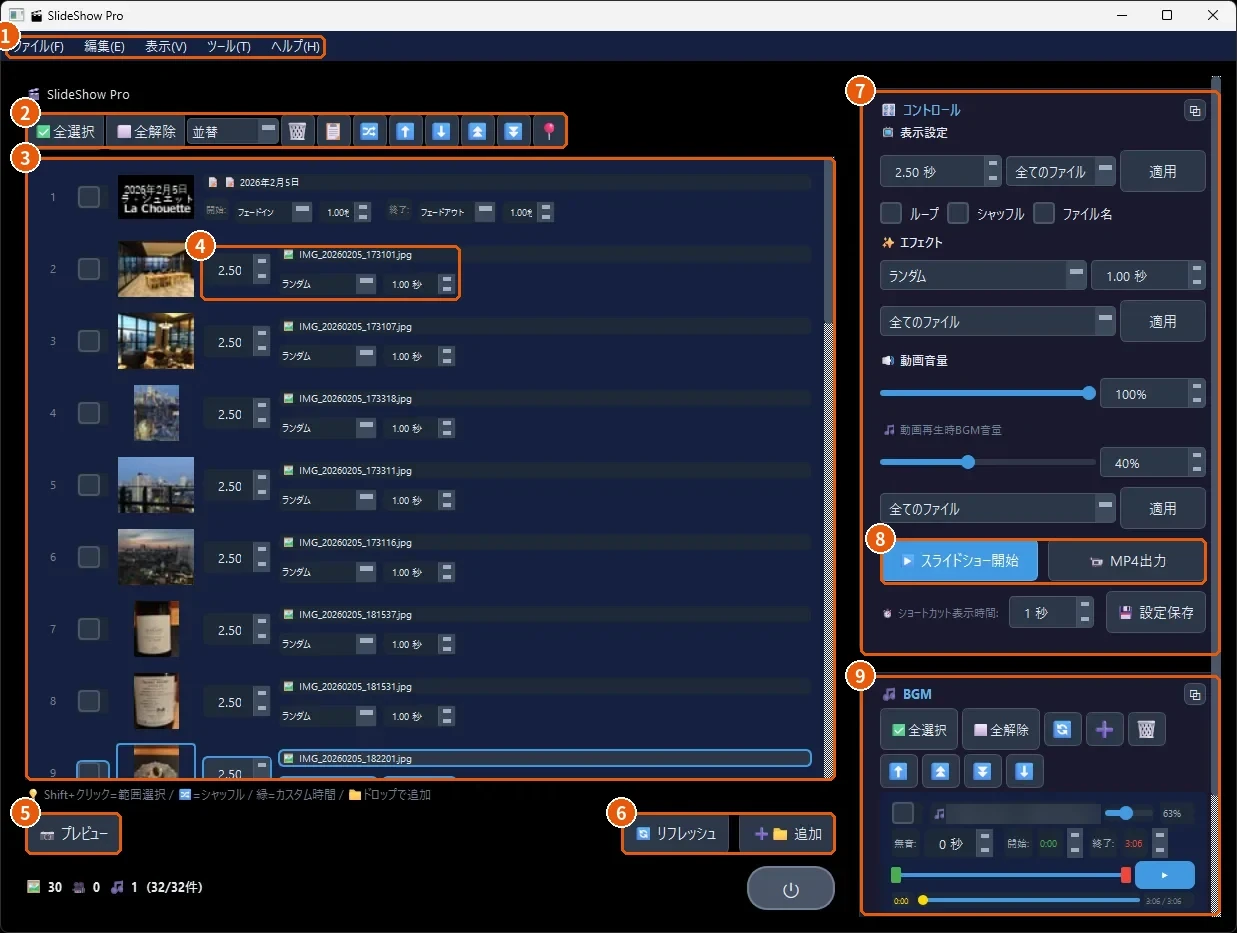
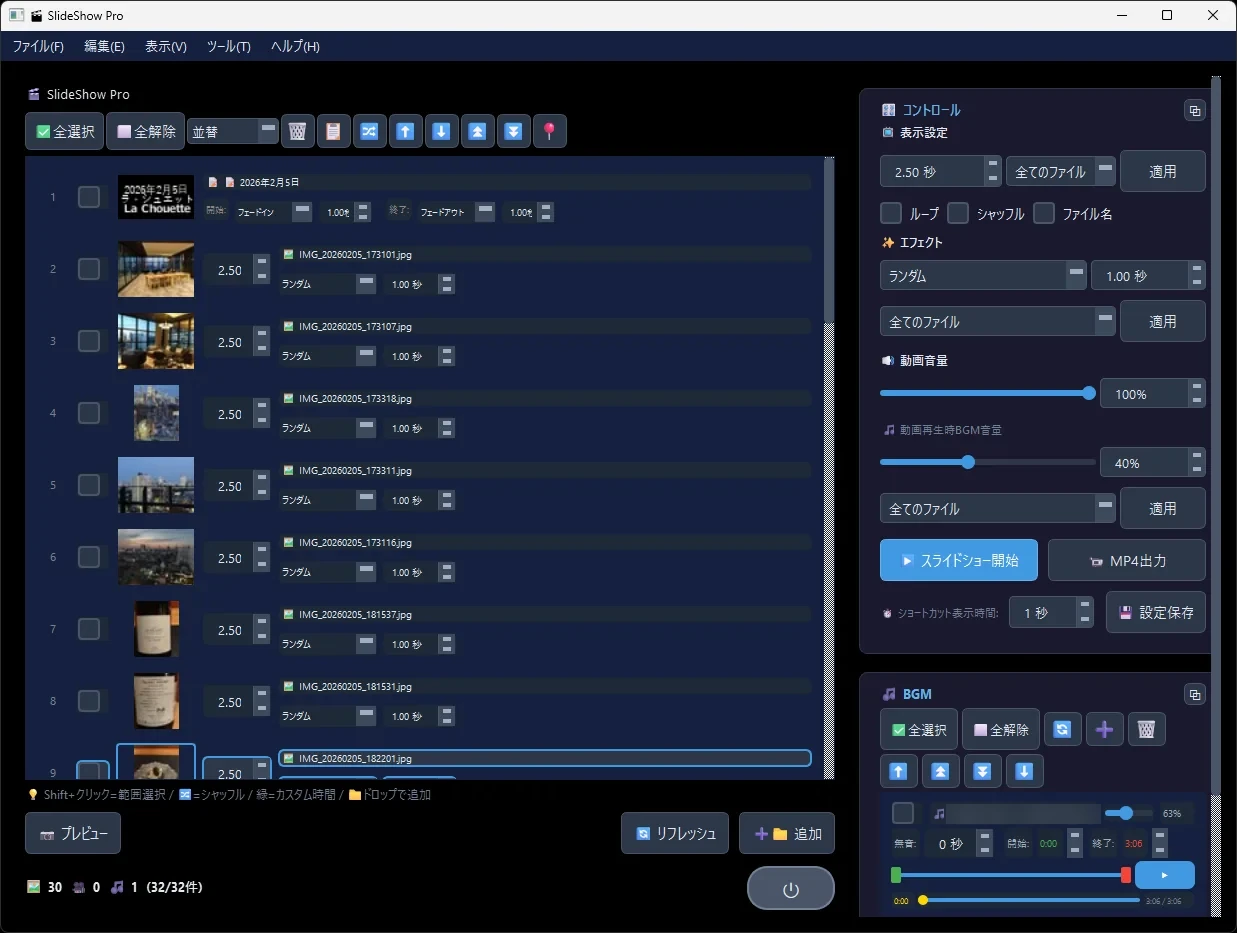
The main screen is split into two parts: "left = list of materials" and "right = settings and BGM".
Figure 3 Main screen (numbers correspond to the descriptions below)
Menu … Save and open projects, add title cards (Ctrl+T), export videos, switch between light and dark mode, and more.
List action buttons … Select all / deselect all, sort (by name, by date, etc.), delete, shuffle, and move selected items up, down, to the top, or to the bottom.
Material list … Items appear in the order they will play. You can add photos and videos by dragging and dropping them here. Use Shift+click to select a range.
Per-item settings … The number on the left is the display time in seconds; below it are the transition effect and its duration. Change these if you want to show a single item for longer (changed rows turn green).
Preview … Check the selected item on a small screen.
Refresh / Add … Reload the folder's contents / choose photos or videos to add.
Controls … Set the overall display time, effects, and volume (explained in detail in the "Settings panel" below).
Start slideshow / Export MP4 … Play full screen / save as a video file.
BGM … Add songs and adjust start and end positions and volume (explained in detail in "BGM" below).
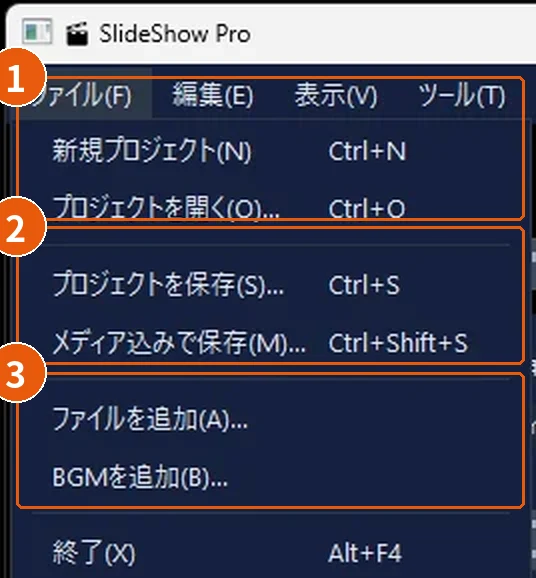
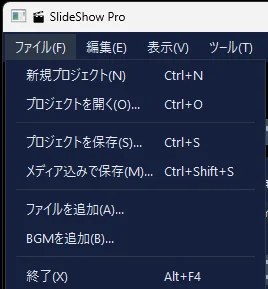
Figure 4: File Menu
File menu
New / Open … Create a new project (Ctrl+N) or open a saved project (Ctrl+O).
Save … Save the order and settings (Ctrl+S). Save with media (Ctrl+Shift+S) bundles your photos and videos into one file, so you can take it to another PC.
Add Files / BGM … The Windows file picker opens so you can select photos, videos, or songs directly (hold Ctrl or Shift to select multiple items).
Settings Panel (Controls)
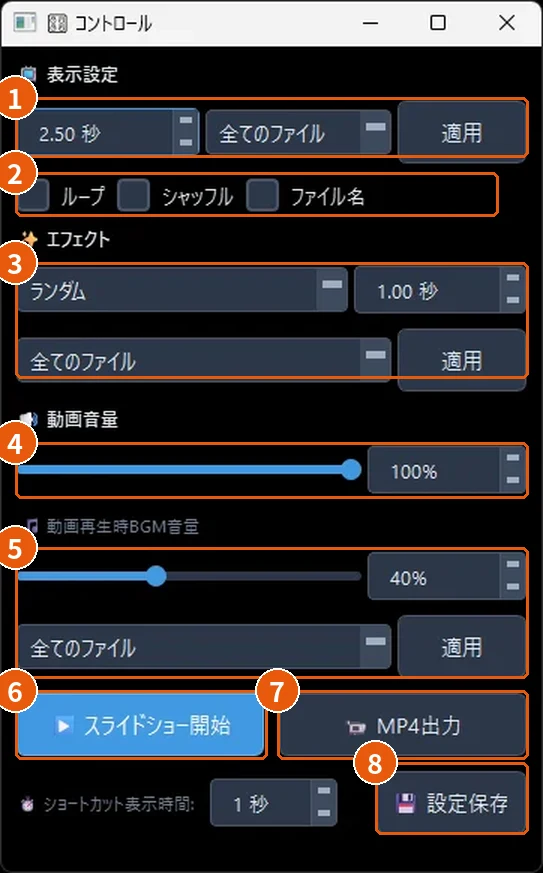
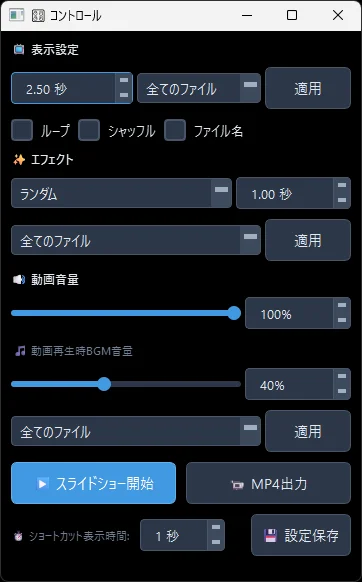
Apply settings in bulk to all items in the list or only to the media you select. Click the □ button at the top right to detach it into a separate window.
Figure 5: Control Panel
Display time … Seconds per image. On the right, choose “All files” or “Selected files,” then click [Apply].
Loop / Shuffle / File name … Return to the first item after the last / shuffle the order / show the file name on screen.
Effects … The type and length of transition effects. Choose “Random” to get a different effect each time.
Video Volume … The volume of the audio in video files.
BGM Volume During Video … Lowers the BGM only while a video is playing, so the video's audio is easier to hear.
Start Slideshow … Plays in full screen. Press Esc to exit.
MP4 Export … Choose a save location and quality to create a video file. With many files, this can take several minutes.
Save Settings … Uses the current settings the next time you launch the app.
BGM
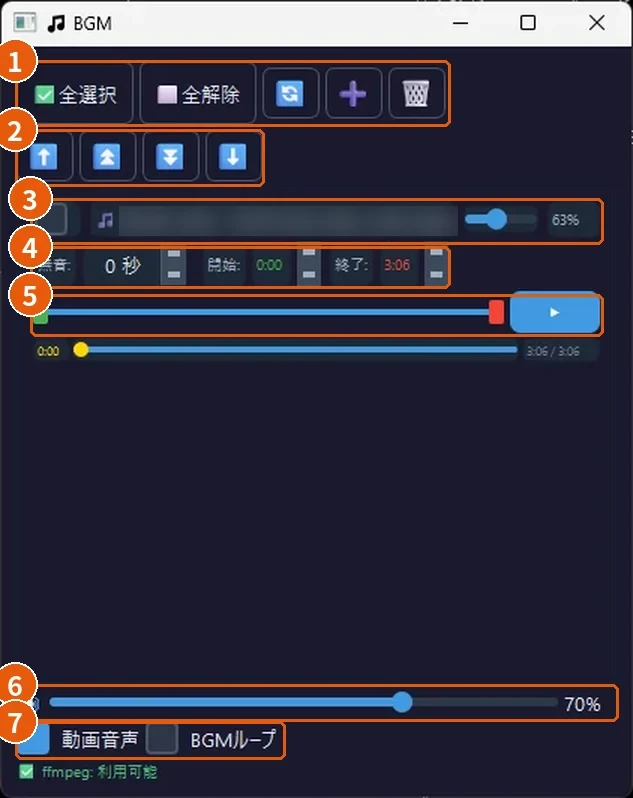
You can add as many songs as you like. They play in order from the top.
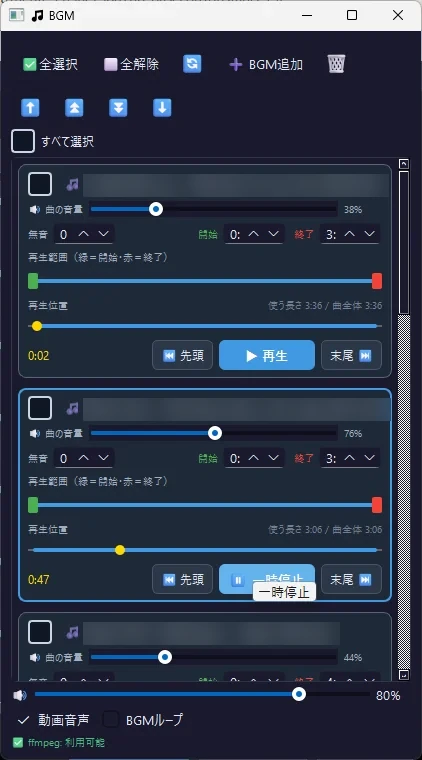
Figure 6: BGM Panel
Song controls … Select all / deselect all, reload, add songs with [➕ Add BGM] (you can pick songs directly in the file picker), and delete. Each song is listed in its own frame of equal height. Use the checkbox in the top-left corner of each frame to select songs, or use “Select All” at the top of the list to select or deselect all of them at once.
Reorder songs … Move the selected songs up, to the top, to the end, or down.
Song name and per-song volume … Use the “🔊 Volume” slider to make a single song louder or quieter (0–150%).
Silence / Start / End … “Silence” sets how many seconds of silence to insert before the song. Start and End determine which part of the song is used. You can also enter start and end times as minutes:seconds, such as “1:30” (type it and press Enter).
Range bar and playback position bar … Use the green (start) and red (end) handles on the upper bar to set the range. The lower playback position bar stretches and shrinks to match the same range, and the yellow dot shows the current playback position. Click the lower bar to preview from that position.
Preview buttons (bottom right of each frame) … [⏮ Start] jumps to the beginning of the range, [▶ Play] / [⏸ Pause] previews and pauses, and [End ⏭] jumps to the end of the range.
Overall volume … The overall volume of the BGM.
Video audio / BGM loop … Whether to play the audio from video files / whether to repeat from the beginning when a song ends.
Keyboard Shortcuts
Keys you can use during slideshow playback. Press S during playback to show the list on screen as well.
Keys
Function
Space
Pause / Resume
←→
Previous / Next item
↑↓
Raise / lower BGM volume
+-
Raise / lower video volume
1–9 (for photos)
Change display speed
0123 (for videos)
Playback speed 0.5x / 1x / 2x / 3x
R
Rotate photo
S
Show / hide key list (once shown, it stays until you press S again)
Esc
Exit slideshow
F5 / F11 (main screen)
Refresh list / Full-screen display
Download
SlideShow Pro v1.3 (Build 211) File name SlideShowPro_Setup_v1.3_211.exe / About 120MB / Released 2026-10-13 System requirements: Windows 10 or 11 (64-bit). Exports are faster if you have an NVIDIA graphics card.
If you see “Windows protected your PC” after downloading, follow the explanation here and proceed with [More info] → [Run]. File checksum (SHA-256): bade32ee4fdee7012e6beef2a329db499347f5bc800385ab63d058ec4743c52b
For developers: a ZIP of the source code that runs directly with Python (SlideShowPro_v1.3_211.zip, about 0.3MB) is also available. In this case, please install Python 3.12, the components, and ffmpeg yourself.
⚠ Notes for this version (based on the 2026-10-13 check)
Please do not use “Help → Update”. Due to a bug, it may delete folders other than the app’s.
Videos exported with BGM may have slight audio-video sync drift.
Title cards with the text effect set to “None” may not show their text when exported.
To be safe, please back up important photos to another location before using them.
What changed in build 211
Fixed an issue where moving the per-track volume bar while previewing a song in the BGM window didn't change the volume. (Previews play at up to 100% volume.)
Fixed an issue where the BGM list scroll bar sometimes didn't work properly at first.
What changed in build 210
Fixed jagged-looking tall images on the left of the installer screens (the “Welcome” screen at the start and the “Finish” screen at the end). The app now measures the screen size and displays the image at its native size without stretching it.
What changed in build 209
Fixed an issue where the content inside the frame would become crowded as more BGM tracks were added, causing buttons and text to overlap. Each track's frame now has the same height no matter how many tracks there are (anything that doesn't fit scrolls down).
Made the per-track checkboxes easier to see (bright frame; when selected, a white check on a blue background).
Added a "Select All" checkbox at the top of the BGM list. When only some tracks are selected, it shows "-".
What changed in Build 208
Each BGM track is now enclosed in its own frame so it's clear which controls belong to each track. Controls are stacked vertically so they fit even when the window is narrow.
Added larger [⏮ First], [▶ Play / ⏸ Pause], and [Last ⏭] buttons in the lower-right corner of each track's frame.
You can now enter BGM start and end times as minutes:seconds, such as "1:30".
When adding BGM, photos, or videos, you no longer need to pick a folder and then choose files in a separate screen. You can now select files directly in the Windows file picker (all supported formats are shown, and multiple selection is allowed).
What changed in Build 207
Stopped the flood of "Deleting file" lines during overwrite installs. The previous version's files are now cleaned up quickly in bulk, shown as a single line, "Cleaning up files from the previous version," with a moving progress bar. Files are also no longer listed one by one during copying and uninstalling.
What changed in Build 206
Fixed the jagged appearance of the image in the upper-right corner of the setup screen. The app now measures the frame size and displays the image without stretching it.
What changed in Build 205
Aligned the BGM playback position bar with the section bar in both position and length. When you shorten a section, the playback position bar shrinks to the same point.
Made the BGM preview button [▶] larger and added a "🔊 Volume" label explanation to each track's volume control.
Changed the BGM [+] button to [➕ Add BGM].
The app icon now appears in the center of the startup screen.
The image in the upper-right corner of the setup screen now displays sharply according to the screen's scaling level.
What changed in Build 204
Changed setup to a dedicated screen that advances with [Next]. Progress is shown as a bar graph.
Fixed an issue where setup could get stuck at "Creating shortcuts."
Changed the version display on the startup screen to the format "Ver 1.3_204."
What changed in Build 203
Setup now installs with a single .exe. You no longer need to install Python, components, or ffmpeg yourself.
The keyboard shortcut list (S) now stays visible until you press S again. (The default for "Shortcut display time" in the settings panel was changed to 0 seconds.)
Fixed a bug where pressing and holding S for a while would make the list flash and disappear.
Main supported file types
JPEGPNGHEIC (iPhone)WebPGIFTIFFAVIFRAW (from various camera makers)MP4MOVAVIMKVWebMWMVMTS, and more
When you run into trouble
Situations like this
Do this
At the end of setup, I got: "Could not install ffmpeg."
While connected to the internet, run setup again. If ffmpeg is already installed on your PC, it will be used.
No video sound / can't export to MP4
ffmpeg is not working. Please run setup again.
The app freezes and won't close
Press Ctrl+Shift+Esc to open Task Manager, select "pythonw," then press [End task].
![Press [More info]](/share-app/slideshow-pro/img/smartscreen-1.webp)
![Press [Run anyway]](/share-app/slideshow-pro/img/smartscreen-2.webp)